
Read Unity Catalog tables in Azure Databricks from Snowflake
via Iceberg

This article is inspired by the work of Randy Pitcher and all credits go to him
How-to-Read-Databricks-Tables-from-Snowflake
The need:
Many customers have both Databricks and Snowflake and move data between them. Iceberg helps to bring true interoperability of data without any copies.
Prerequisites:
Databricks
Databricks Runtime 14.3 LTS or above
The table(s) must have column mapping enabled
Disable deletion vectors on the target table(s)
Snowflake
Permissions to create External Volume, Catalog integration & Iceberg table
Steps:
Databricks
If you have enabled deletion vectors, use following command to make it Uniform compatible
REORG TABLE table_name APPLY (UPGRADE UNIFORM(ICEBERG_COMPAT_VERSION=2));Else enable Uniform using below command
ALTER TABLE table_name SET TBLPROPERTIES(
  'delta.columnMapping.mode'='name',
  'delta.enableIcebergCompatV2' = 'true',
  'delta.universalFormat.enabledFormats' = 'iceberg'
);
Get Unity catalog metastore location
Create a personal access token and have it handy
Azure
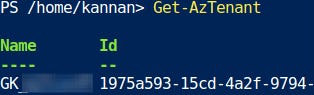
Get azure tenant id. You can use Get-AzTenant or get it from Entra UI
Snowflake
Create external volume
CREATE EXTERNAL VOLUME az_uc_metastore
  STORAGE_LOCATIONS =
    (
      (
        NAME = 'az_uc_metastore'
        STORAGE_PROVIDER = 'AZURE'
        STORAGE_BASE_URL = 'azure://<UC metastore location>'
        AZURE_TENANT_ID = 'AzureTenantID'
      )
    );
Grant Snowflake access to the storage location
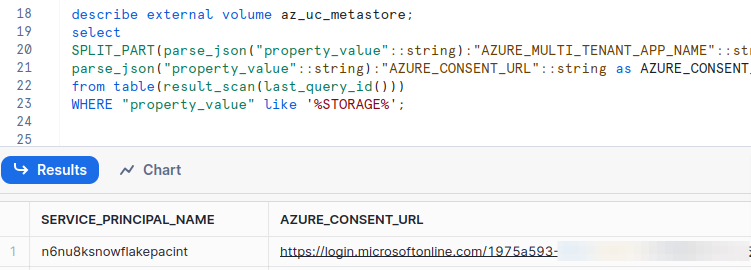
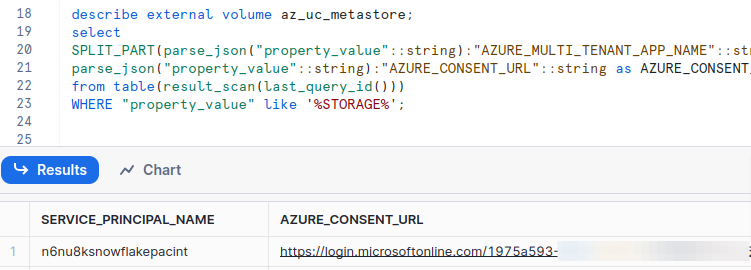
Run below query to get Service principal name and Azure consent URL
Navigate to Azure consent URL and Accept
Grant “Storage Blob Data Contributor“ at the storage account level NOT container
describe external volume <external_volume_name>;
select
SPLIT_PART(parse_json("property_value"::string):"AZURE_MULTI_TENANT_APP_NAME"::string,'_', 1) as SERVICE_PRINCIPAL_NAME,
parse_json("property_value"::string):"AZURE_CONSENT_URL"::string as AZURE_CONSENT_URL
from table(result_scan(last_query_id()))
WHERE "property_value" like '%STORAGE%';
Create Catalog integration to UC
CREATE OR REPLACE CATALOG INTEGRATION az_unity_catalog
  CATALOG_SOURCE = ICEBERG_REST
  TABLE_FORMAT = ICEBERG
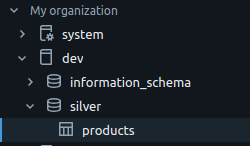
  CATALOG_NAMESPACE = 'silver' --Schema name in databricks
  REST_CONFIG = (
    CATALOG_URI = 'https://<Databricks-WorkspaceURL>/iceberg'
    WAREHOUSE = 'dev' --Catalog name in databricks
  )
  REST_AUTHENTICATION = (
     TYPE = BEARER
     BEARER_TOKEN = 'PersonalAccessToken'
  )
  ENABLED = TRUE;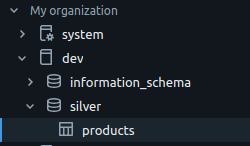
Create Iceberg table
CREATE OR REPLACE ICEBERG TABLE
	products
	EXTERNAL_VOLUME = 'az_uc_metastore'
	CATALOG = 'az_unity_catalog'
	CATALOG_TABLE_NAME = 'products';
Query & Refresh:
Query table in Snowflake as usual

Run refresh statement to reflect changes in Databricks
ALTER ICEBERG TABLE products_uc_dbr REFRESH;

Outcome:
One copy of data to work with and easier maintenance
Things to note:
Metadata generation takes few seconds post write in Databricks. I’ve noticed 4 seconds, if write/merge is the last command in your notebook test the duration before using for Production.
This can be found in ‘converted_delta_timestamp property in table properties UI


Table schema and data used in above demo:
create table products(
  id int,
  product_name string,
  product_category string
)

--First run
INSERT INTO products
VALUES
(1, 'Portronics Luxcell Wireless Mini 10K', 'PowerBank')

--Run after creating table in Snowflake
INSERT INTO products
VALUES
(2, 'Anker PowerCore 20100mAh', 'PowerBank'),
(3, 'Mi 20000mAh Li-Polymer Power Bank 3i', 'PowerBank'),
(4, 'URBN 10000 mAh Li-Polymer Ultra Compact Power Bank', 'PowerBank'),
(5, 'Syska 10000 mAh Li-Polymer P1016B Power Pocket100 Power Bank', 'PowerBank'),
(6, 'Ambrane 15000mAh Li-Polymer Powerbank with Type C and USB Ports', 'PowerBank'),
(7, 'Croma 10000mAh Li-Polymer Power Bank with 12W Fast Charge', 'PowerBank'),
(8, 'Philips 11000 mAh Power Bank', 'PowerBank'),
(9, 'Realme 10000mAh Power Bank 2', 'PowerBank'),
(10, 'OnePlus 10000 mAh Power Bank', 'PowerBank');